![Lumin_logo_header (1).svg]](https://help.luminpdf.com/hubfs/Lumin_logo_header%20(1).svg)
Prerequisites:
- How do I set up the Lumin Sign and Salesforce integration?
- How do I map Lumin Templates in Salesforce?
Select a Template
-
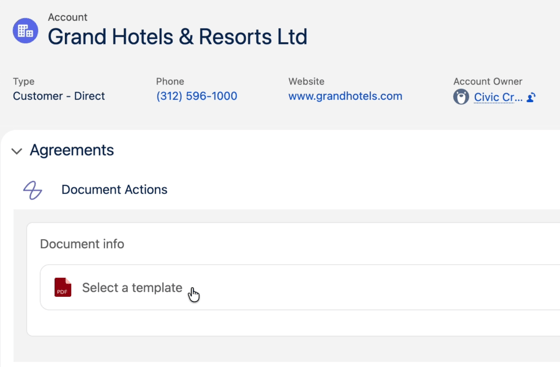
Navigate to the Account record (or the object where your components are located).
-
Under the Document Actions component, click Select a Template.
-
Choose the specific agreement you wish to send.

Review and verify
Before sending, use the following options to ensure the document is correct: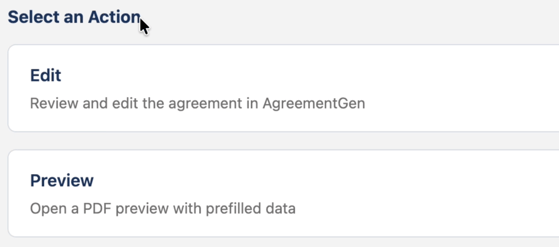
-
Edit: Opens the agreement in AgreementGen for manual modifications.
-
Preview: Downloads a PDF with pre-filled Salesforce data. Use this to verify that all variables (names, addresses, etc.) have populated correctly.
Configure and Send
After reviewing your document, return to Salesforce and click Send for Signature.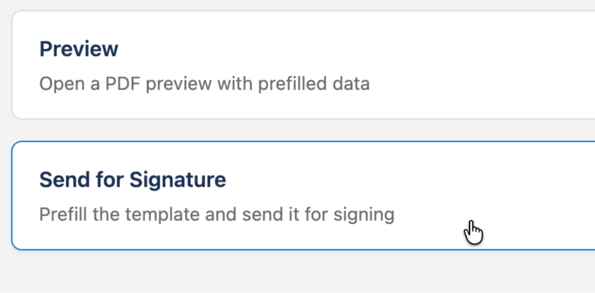
-
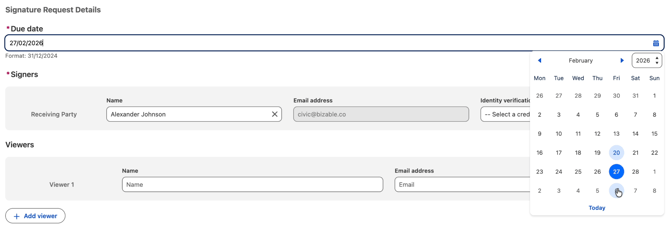
The Due date is pre-set based on admin configurations (e.g., 7 days) but can be manually updated here.
-
Review the list of signers pulled from your template mapping.

-
To include a non-signing observer, enter their Full Name and Email. Viewers receive a copy of the agreement at every stage of the lifecycle.

-
Click Send. Signers will receive an email link to sign; a Lumin Sign account is not required to sign.
Track status
-
Navigate to the Signature Request component on the record.

-
Click the Refresh button to pull the latest status.
-
Once all parties have signed, the status updates to Completed, and a copy of the final document is automatically attached to the record’s Files section.
Cancel request
- Navigate to the Signature request component on the record.
- Click the dropdown arrow to bring up the Cancel option.
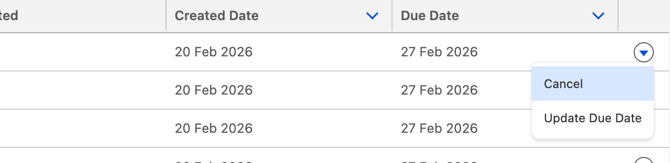
- A success message will appear, and then the status will change to 'Cancelled'.
