![Lumin_logo_header (1).svg]](https://help.luminpdf.com/hubfs/Lumin_logo_header%20(1).svg)
Prerequisites
-
An active Lumin Sign Salesforce integration
-
Access to Lumin
-
Salesforce Administrator permissions (for mapping)
Step 1: Prepare in Lumin – AgreementGen
-
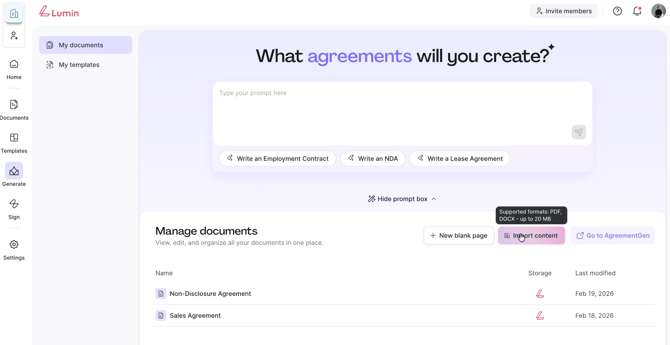
Upload your file or use the AI prompt to generate one.
-
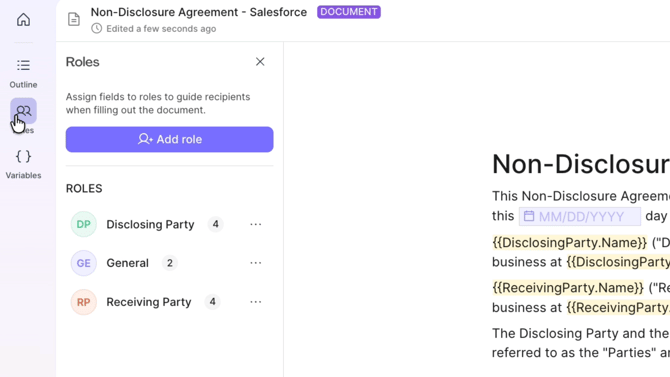
Use the Roles tab to add or remove signer roles.
-
To reassign a fillable field, click the field > Assign Role > select the correct signer.
-
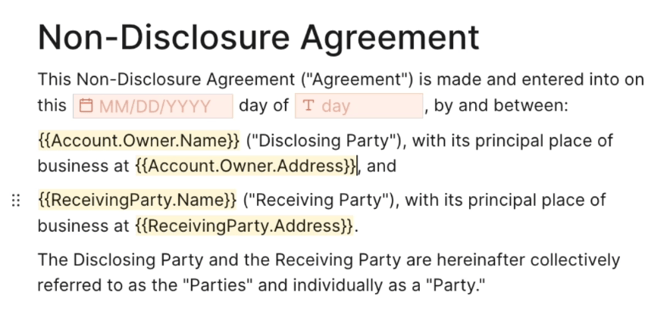
Insert Variables:
-
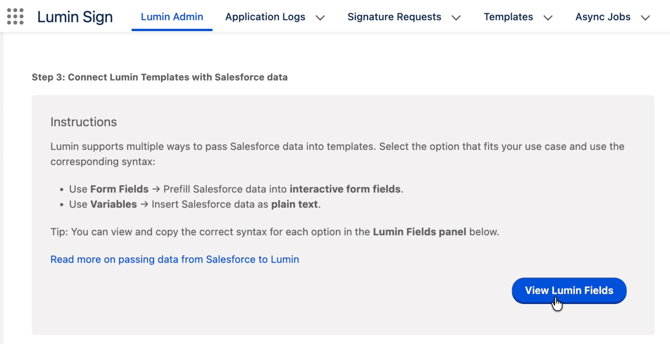
In Salesforce Lumin Admin, click View Lumin Fields.
-
Copy the Variable Name (e.g.,
). Alternatively, copy the Form Field Name Account.Name).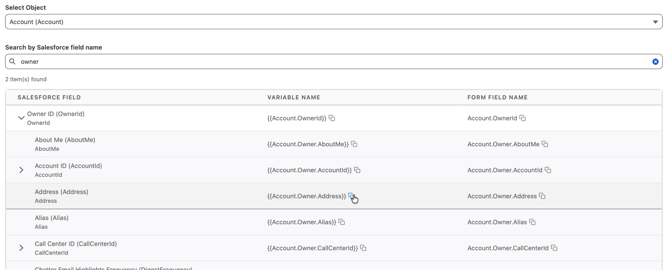
-
Paste it directly into your AgreementGen text.
-
-
Save: Click the three dots (top right) > Save as Template.
Step 2: Sync to Salesforce
-
In Salesforce, go to the Lumin Admin tab.
-
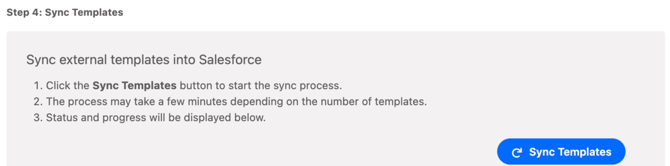
Scroll to Step 4 and click Sync Templates.
-
Go to the Templates tab and ensure your template is toggled to Active.
Step 3: Map data fields
-
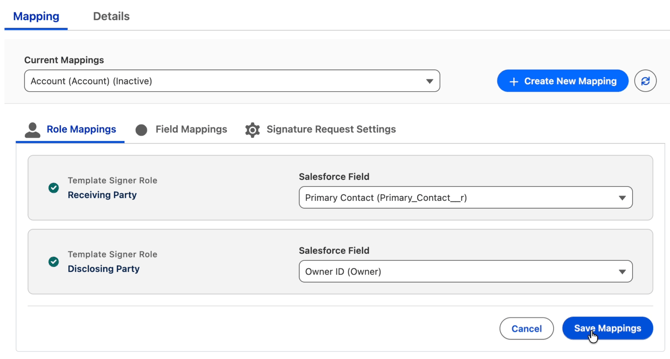
In the Mapping tab, link your document roles to Salesforce fields (e.g., Signer → Primary Contact).
-
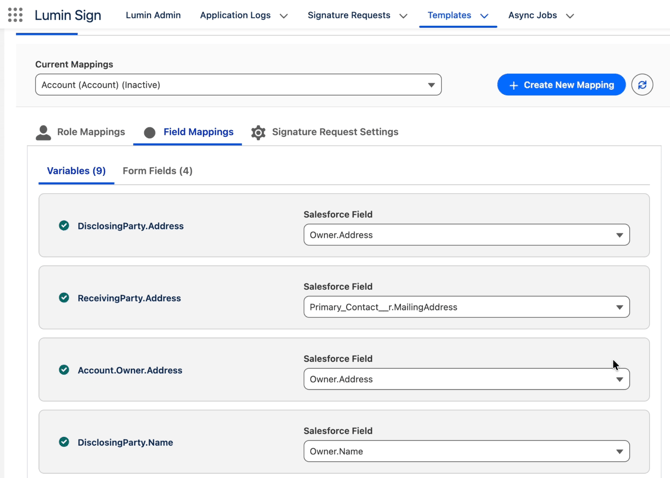
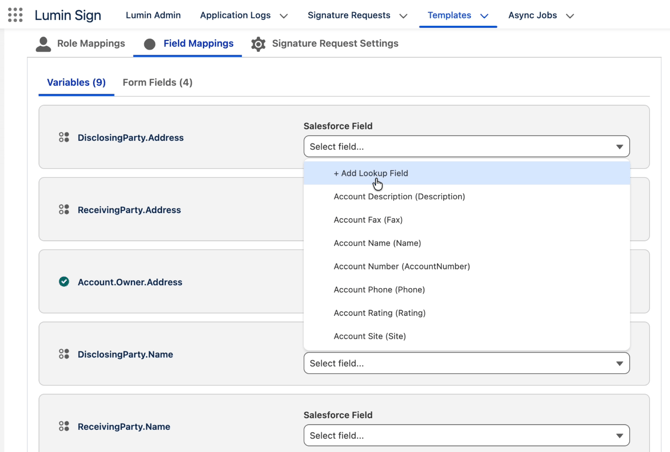
In Field Mappings, ensure document variables match Salesforce fields.
-
Use Add Lookup Field to pull data from related records (like an Owner's email).
Step 4: Automate the workflow
In Signature Request Settings, configure your final automation:
-
Toggle Account Mapping to Active.
-
Specify the number of days until the signature request expires.
-
Check Automatic Download to save signed PDFs back to the Salesforce record.
-
Check Include Certificate of Completion.
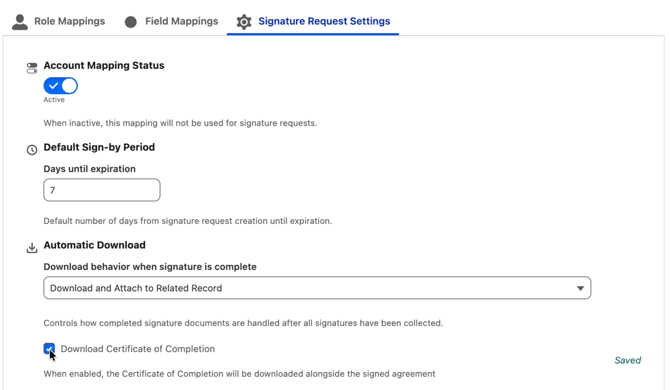
NOTE: The signature request setting is configured for each template.