- From the Lumin home page, head to Documents.
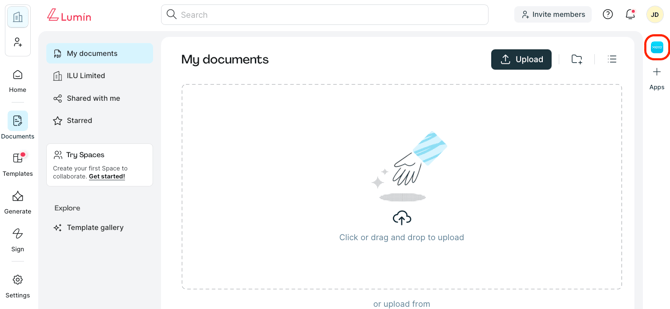
- Click the Xero mini app.
- Click on your Xero organization, which should already be connected.
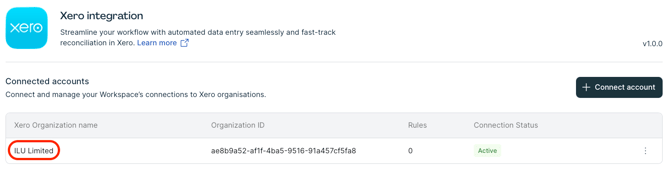
- Select the Operations tab.
- In Documents, you will find the documents uploaded in Lumin from Xero.
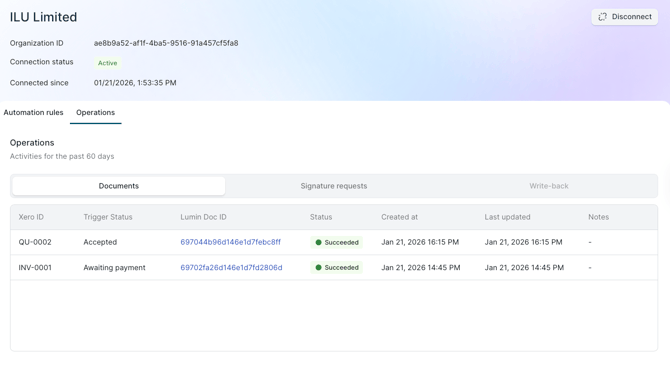
- Xero ID – type and name of document in Xero
- Trigger Status – document status in Xero
- Lumin Doc ID – unique identifier for the document after it was uploaded to Lumin. This is a hyperlink; click the ID to access the document.
- Status – indicates the outcome of the event based on automation rules
- Created at – date and time the event took place
- In Signature requests, you will find information on documents sent for signatures.
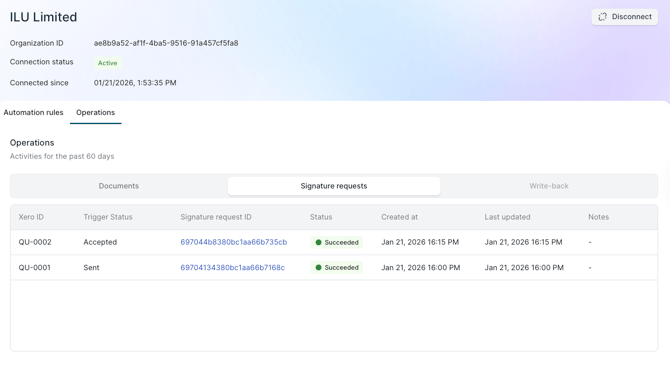
- Xero ID – type and name of document in Xero
- Trigger Status – document status in Xero
- Signature Request ID – unique identifier for the agreement after it was sent for signature in Lumin Sign. This is a hyperlink; click the ID to access the document
- Status – indicates the outcome of the event based on automation rules
- Created at – date and time the event took place
English
![Lumin_logo_header (1).svg]](https://help.luminpdf.com/hubfs/Lumin_logo_header%20(1).svg)