![Lumin_logo_header (1).svg]](https://help.luminpdf.com/hubfs/Lumin_logo_header%20(1).svg)
Prerequisites
-
Salesforce Administrator access
-
A Lumin Sign account with existing templates
Step 1: Install the Lumin Sign app
-
Visit the Salesforce AppExchange.
-
Search for Lumin Sign and click Get It Now.
- Alternatively, click Try it to test the Lumin Sign app in your Sandbox.
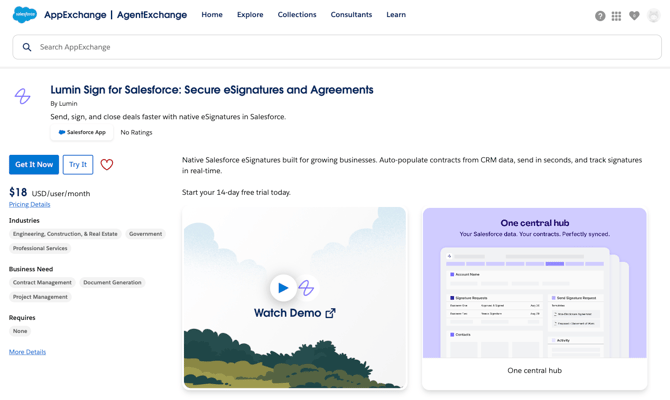
- Alternatively, click Try it to test the Lumin Sign app in your Sandbox.
-
Choose your installation preference:
-
Install for Admins Only
-
Install for All Users
-
Install for Specific Profiles
-
-
Click Install.
-
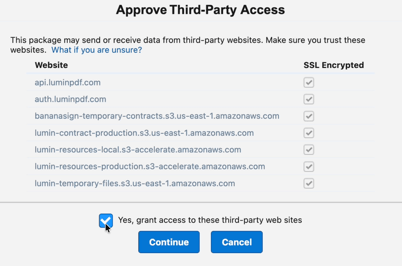
When prompted, check the box to Grant access to Lumin (required for data syncing) and click Continue.
Step 2: Assign Permission Sets
To ensure users can interact with Lumin components, you must assign the correct permission sets.
| User Role | Required Permission Sets |
| Admins | Lumin Admin, Lumin Site Guest User, Lumin User |
| Standard Users | Lumin Site Guest User, Lumin User |
To assign permissions:
-
Go to Setup > Users > Permission Sets.
-
Click on a specific Permission Set (e.g., Lumin Admin).
-
Select Manage Assignments > Add Assignment.
-
Select the relevant users and click Assign.
-
Repeat for all required sets.
Step 3: Authorize the integration
This step connects your specific Lumin Workspace to your Salesforce Tenant.
-
Open the App Launcher (waffle icon) and select Lumin Sign.
-
Navigate to the Lumin Admin tab.
-
Click Register OAuth Client.
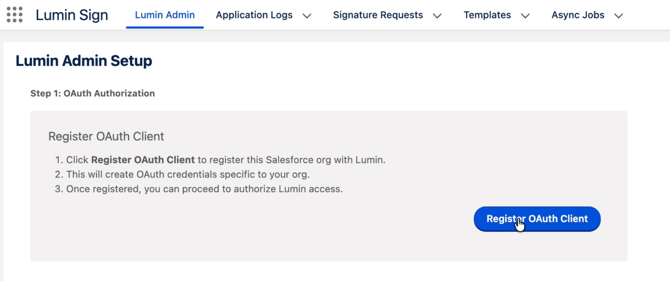
- Then, select Authorize Admin.
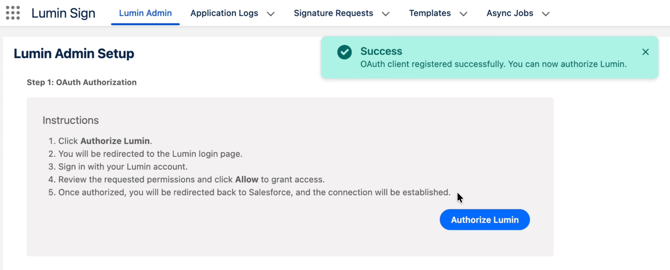
-
Log in to Lumin if prompted, select the Workspace containing your templates.
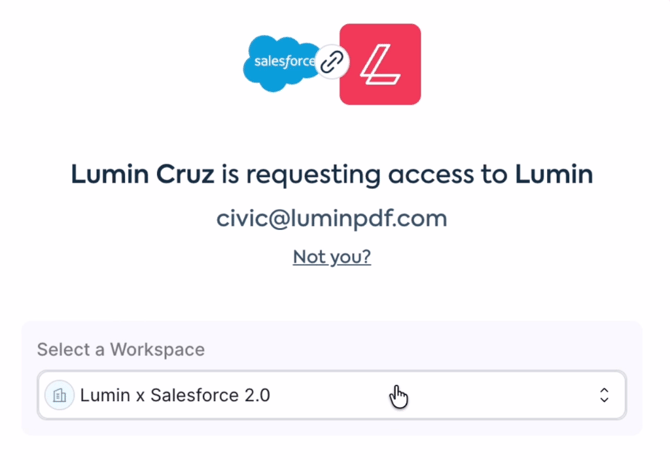
- Then, click Allow Access.
Step 4: Configure the webhook (site setup)
To receive real-time updates when a document is signed, you must configure a Salesforce Site.
-
In the Lumin Admin tab, refer to Step 2 for the specific configuration values.
-
Go to Setup > Sites.
-
Create a new site with these details:
-
Site Label:
Lumin Webhook -
Site Name: (Auto-populates)
-
Active: Check this box.
-
Active Site Home Page:
InMaintenance -
Site Template:
SiteTemplate
-
-
Click Save.
Step 5: Finalize site security
-
On the Site details page, click Public Access Settings.
-
Click Assigned Users, then select Lumin Webhook.
-
Go to the Permission Set Assignments tab and click Edit Assignments.
-
Find Lumin Site Guest User, move it to Enabled Permission Sets, and click Save.
Step 6: Link the webhook & complete registration
To ensure Salesforce receives real-time status updates, you must register the Webhook URL in your Lumin settings and finalize the registration in Salesforce.
-
In Salesforce, go to the Lumin Admin tab and Copy the generated Webhook URL.
-
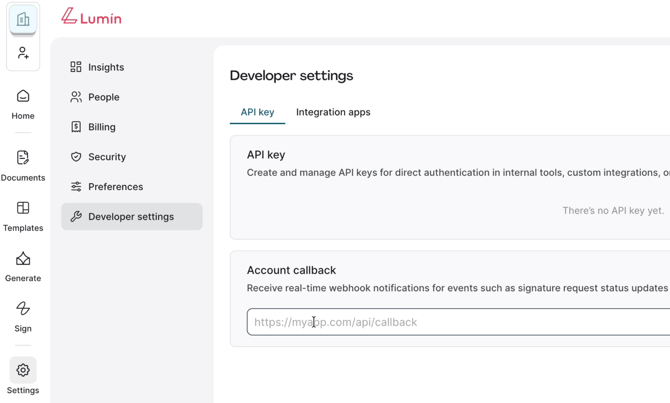
Log in to your Lumin account and navigate to Settings > Developer Settings.
-
Under the Account Callback section, paste the Webhook URL and click Save.
-
Return to the Lumin Admin tab in Salesforce.
-
Under Step 2 (Site Settings Configuration), click the Update DCR Registration button.
TIP: Clicking Update DCR Registration synchronizes your Salesforce Site with Lumin’s backend, ensuring that document status updates (like “Signed” or “Declined”) flow back into your CRM automatically.
Step 7: Add Components to page layouts
Finally, add the Lumin interface to your records (e.g., Accounts, Leads, or Opportunities).
-
Navigate to a record (e.g., an Account).
-
Click the Gear Icon in the top right and select Edit Page.
-
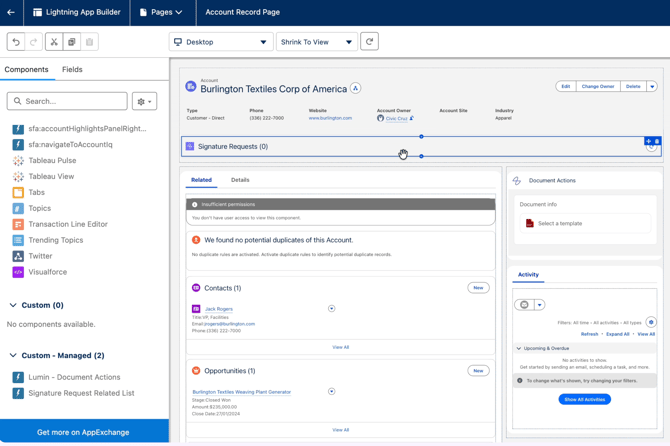
From the Components list on the left, find and drag these onto your page:
-
Lumin - Document Actions
-
Signature Request Related List
-
-
Click Save and Activate.