![Lumin_logo_header (1).svg]](https://help.luminpdf.com/hubfs/Lumin_logo_header%20(1).svg)
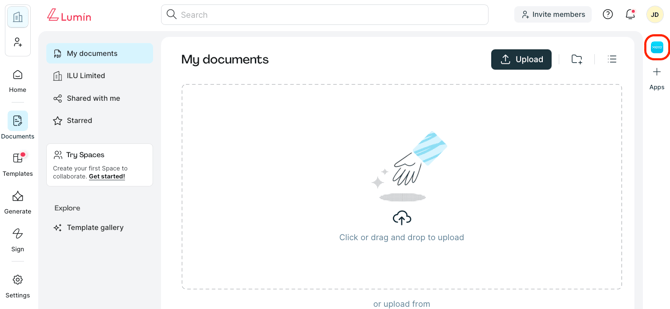
- From the Lumin home page, open the Xero mini app.
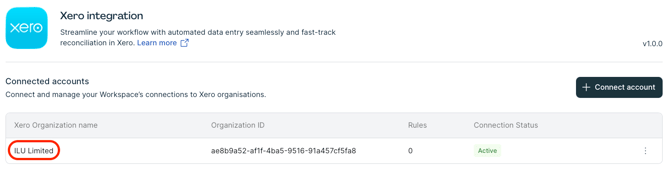
- Click on your Xero organization, which should already be connected.
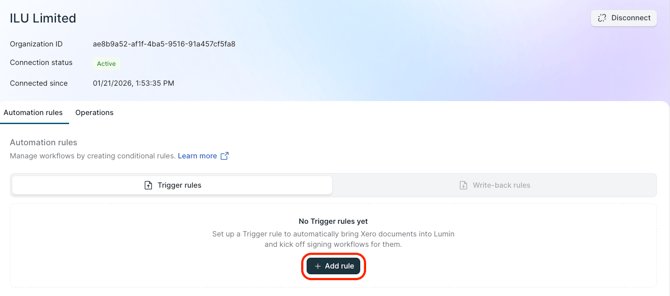
- In Automation rules, you’ll find the Trigger rules tab, then select +Add rule.
- Set up your trigger rule using the available conditions:
- When a(n) – the type of document
- Changes status to – the status the document is under in Xero
- Then do action – the action to be performed by Lumin
- Then, click Save.

Actions performed by Lumin
Import to Lumin – uploads a copy of the invoice, quote, or purchase order in your Lumin Workspace.
Send signature request – will send a signature request via Lumin Sign.
NOTE: To send more than five documents for signature per month, a Lumin Sign Pro subscription is required. Find out more here.
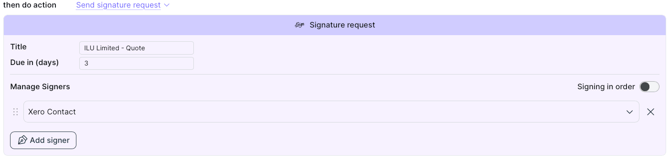
- Title – A field dedicated to the organization name or type of document sent. This will appear in the email notification sent to the nominated contact.
- Due in (days) – All signature requests sent from Lumin Sign require a date by which they need to be signed. This is automatically set to two days, but can be updated.
- Manage Signers – This is who will receive the signature request.
- Users can choose Xero contact to send the request to the individual the invoice, quote, or purchase order is addressed to in Xero.
- Alternatively, select Custom email to manually enter the email address. This is useful if the same person in the organization, such as a manager, needs to approve documents before they are sent to clients.
- Signing order can also be toggled on to activate sequenced signing.
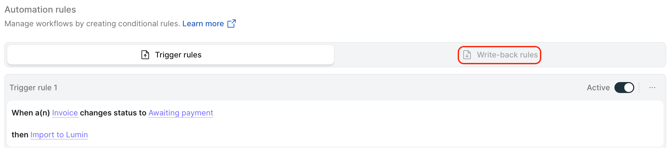
COMING SOON: Using write-back rules, documents signed in Lumin will be uploaded to Xero and will trigger document status updates.