- From the Lumin home page, click Templates from the left-hand menu.
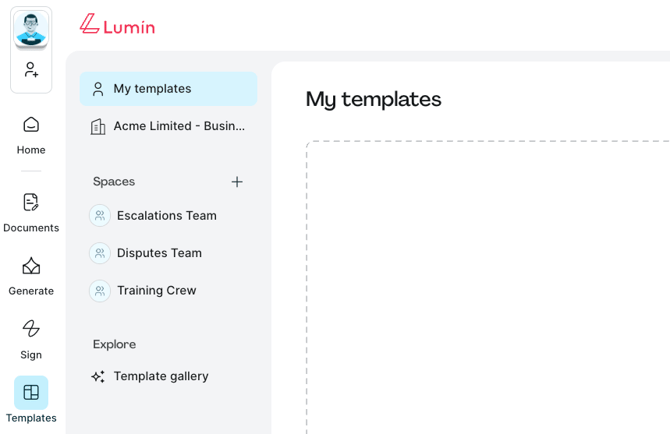
- My templates (personal) – Where users can find templates that only they can use
- Acme Limited (Workspace) – where users can find templates available for everyone in the Workspace to use
- Click the template once to preview its content.
- In this view, users can scroll vertically to read the content of the template, quickly copy the shareable template link, and access to edit the template.
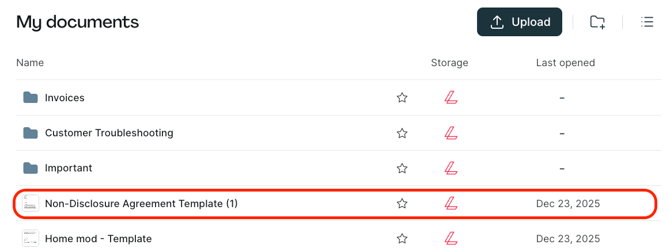
- By selecting Use template, a copy of the template will be saved under My documents, ready to be completed.
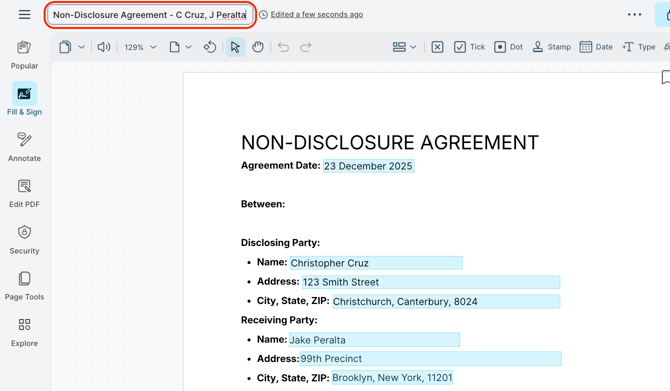
- After completing the document, rename the document in the top right corner of the page.
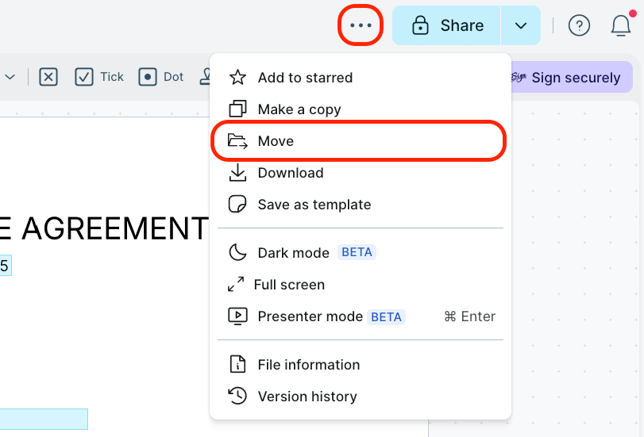
- If applicable, share the completed document with the entire Workspace by moving it; click More options, and then select Move.
- Alternatively, download the document or send the document for signature with Lumin Sign.
English
![Lumin_logo_header (1).svg]](https://help.luminpdf.com/hubfs/Lumin_logo_header%20(1).svg)